How to Add a Single Parcel
Step-by-Step Guide to Adding a Single Parcel to Your Proc360 Store with Ease
How to Use Your Proc360 Warehouse
Watch the video below for a quick walkthrough. If you prefer reading, you'll find the step-by-step guide right after.
Getting your parcels safely to your Store is the first step to smooth and stress-free shipping. Follow this step-by-step guide to add your parcel on Proc360 and let us handle the rest.
Log In to Your Proc360 Account
- Log in to your Proc360 account using your username and password.
- Once logged in, you’ll land on your homepage
Navigate to the Parcel Section in Store
- On your Store dashboard, select Add Your Parcel Codes to begin.
Enter Your Parcel Codes
First, get your parcel tracking code either from a Chinese marketplace (e.g., 1688, Taobao, Pinduoduo) or from your supplier. See the guide on how to get your parcel tracking code
- Copy and paste your parcel tracking code(s) into the provided box.
- You can add one or multiple parcel codes at once.
- Select the Store you want to use: air or sea, based on your shipping preference.
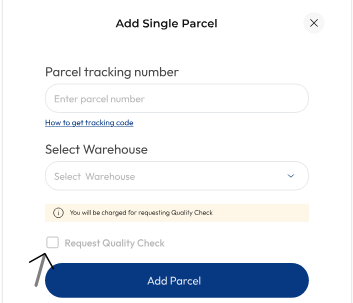
Request a Quality Check (Optional)
- If you’d like the warehouse to inspect the items, tick the “Request Quality Check” box.
- Choose the type of Quality Check and add quantity
See the guide on how to request a quality check for more details
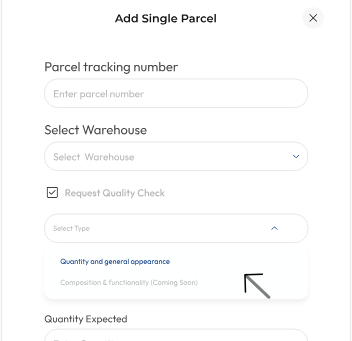
Add the Parcel
- Review your parcel details and click Add Parcel to submit.
Your parcel code(s) will be added to your Store and will be ready for warehouse receipt once your parcels arrive.
That’s it! Your parcel codes are now added to your Store.