How to Edit an Order
Step-by-Step Guide to Editing an Order Before Payment on Proc360
How to Adjust Your Order After Receiving a Quote on Proc360
Watch the video below for a quick walkthrough. If you prefer reading, you'll find the step-by-step guide right after.
You received your quote but need to make some changes? No problem. If your order is still in Pending Payment, you can adjust it. You can change quantities, remove items, or add new items from your cart.
Go to the Order
- Go to Menu.
- Select “Buy for Me”
- Click the Pending Payment tab to see all orders that haven’t been paid for. You'll also find recent ones in your 'quick actions.'
- Click the order you want to edit to see the details
Note: You'll also find it directly on your dashboard under “quick actions.”
Review the Order
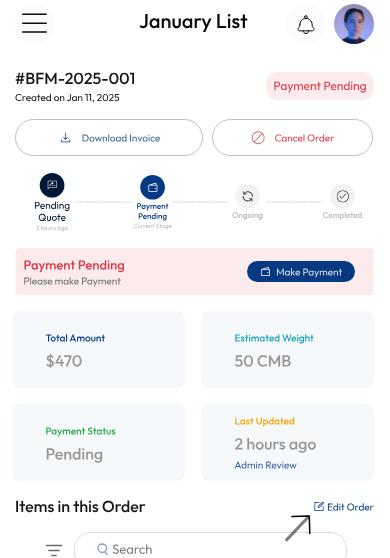
On the Order Details page, you’ll see individual items and their prices.
- Review carefully, You can also click “Download Invoice” to see a full breakdown.
- Finally, once you know what you want to change, tap the “Edit Order” button.
Make Changes
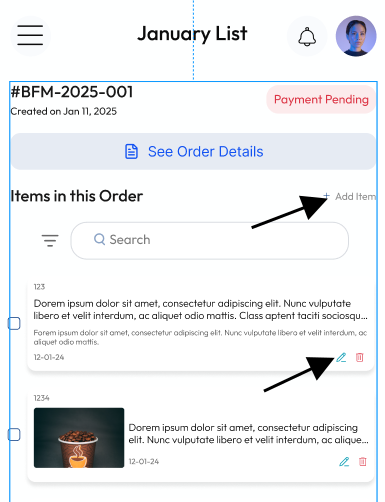
- To delete an item, click the trash icon.
- To update quantity or specification, click the pencil icon.
- To add new items, click “Add Items” at the top right.
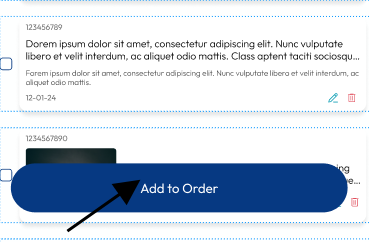
- This opens your cart, choose the items (maximum of 3) you want, and click “Add to Order.”
Save and Proceed
Once you're done, click “Save Order.”
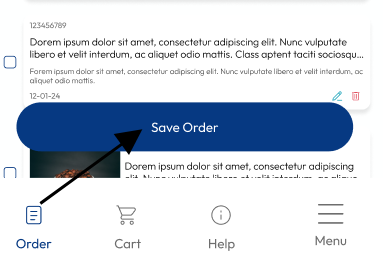
- If you added new items, your order will go back to Pending Quote so Proc360 can process the changes and send you a fresh quote.
- If you only made edits to existing items or removed items, the prices are updated instantly, there is no need to wait.
Once you’re satisfied, you can go ahead and make your payment right away.