How to Add to Cart
Quick and Easy Way to Add Items to Your Cart
How to Create an Order on Proc360 and Request a Quote
Watch the video below for a quick walkthrough. If you prefer reading, you'll find the step-by-step guide right after.
Adding items to your cart on Proc360 is quick and easy. Follow these steps to get everything you need in just a few clicks.
Navigate to Your Cart
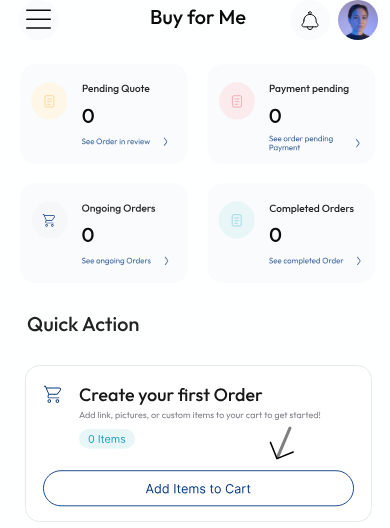
After logging in, you can access your cart by clicking "Add Items to Cart" on your dashboard
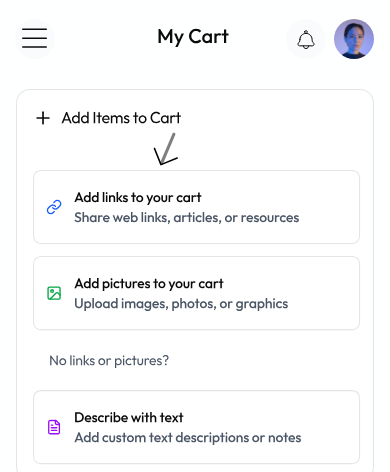
If your cart is empty, it'll look like this.
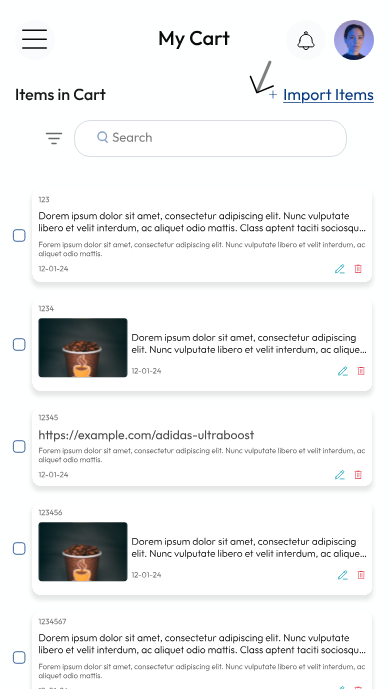
If your cart is not empty, it'll look like this instead.
Choose How You Want to Add Items
Using a Product Link
- Click Import Item → choose Link
- Select Single Link or Add Multiple Links
Here's a detailed guide on where to find links
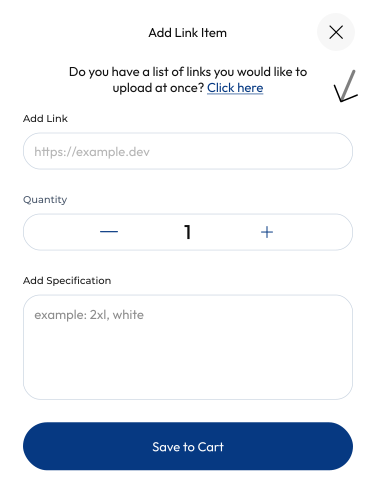
- Enter the quantity and specifications (size, color, type, etc.).
- Click "Save to Cart".
Using a Picture
- Click Import Item → choose Picture
- Select Single Picture or Add Multiple Pictures
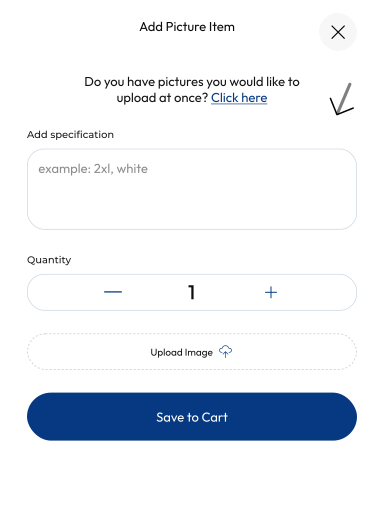
- Upload image(s)
- Enter the quantity and specifications (size, color, type, etc.).
- Click "Save to Cart".
Without a Link or Picture
- Click Import Item → choose Text
- Describe what you need with as much detail as possible
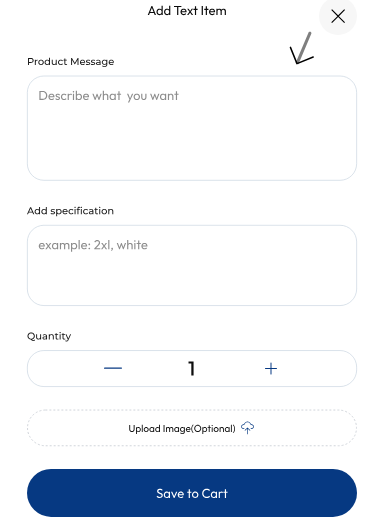
- Enter the quantity and specifications (size, color, type, etc.).
- Click "Save to Cart".
You’re All Set! Your items are now safely stored in your cart. Time to place your order and get the best deals!